How to draw your own training task with the task creator
By Marco Baleato · · About the author
Every coach has tasks of their own that are not in any library: the rondo you have been tweaking all season, or the game your players ask for every week. The task creator is a free online tactics board for drawing them and turning them into a clear task sheet, like the ones on this website.
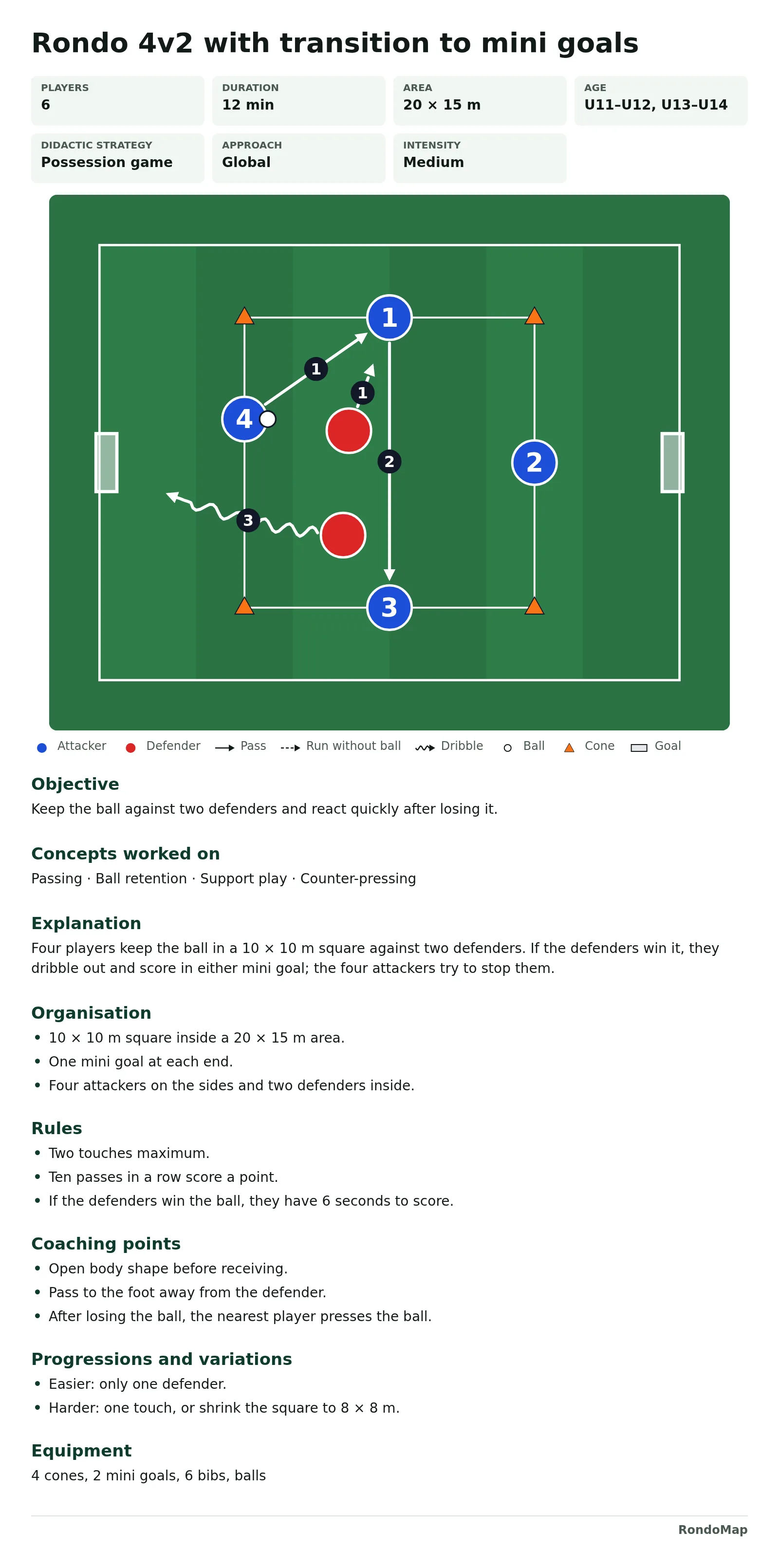
In this guide I draw a real example: a 4v2 rondo in a 10 × 10 m square where, if the defenders win the ball, they dribble out and try to score in one of two mini goals. It takes about ten minutes.
1. Choose the space
Start by choosing the size of the area: a small grid (20 × 15 m) or a medium one (30 × 20 m) for rondos and 1v1s, a large area (40 × 30 m), half a pitch or a full pitch for game situations, or your own measurements. The example uses the small grid.
2. Place players and equipment
Choose an element in the toolbar and tap the pitch to place it: attackers, defenders, neutrals or supports, goalkeepers, balls, cones, poles, mannequins, goals and zones. Drag any element to move it.
When you select an element you can change its details: the label of a player (up to three characters, such as 1, A or GK), the colour of a cone, the direction a goal faces and its width, or the style of a zone. On a computer, the arrow keys move the selected element and Delete removes it.
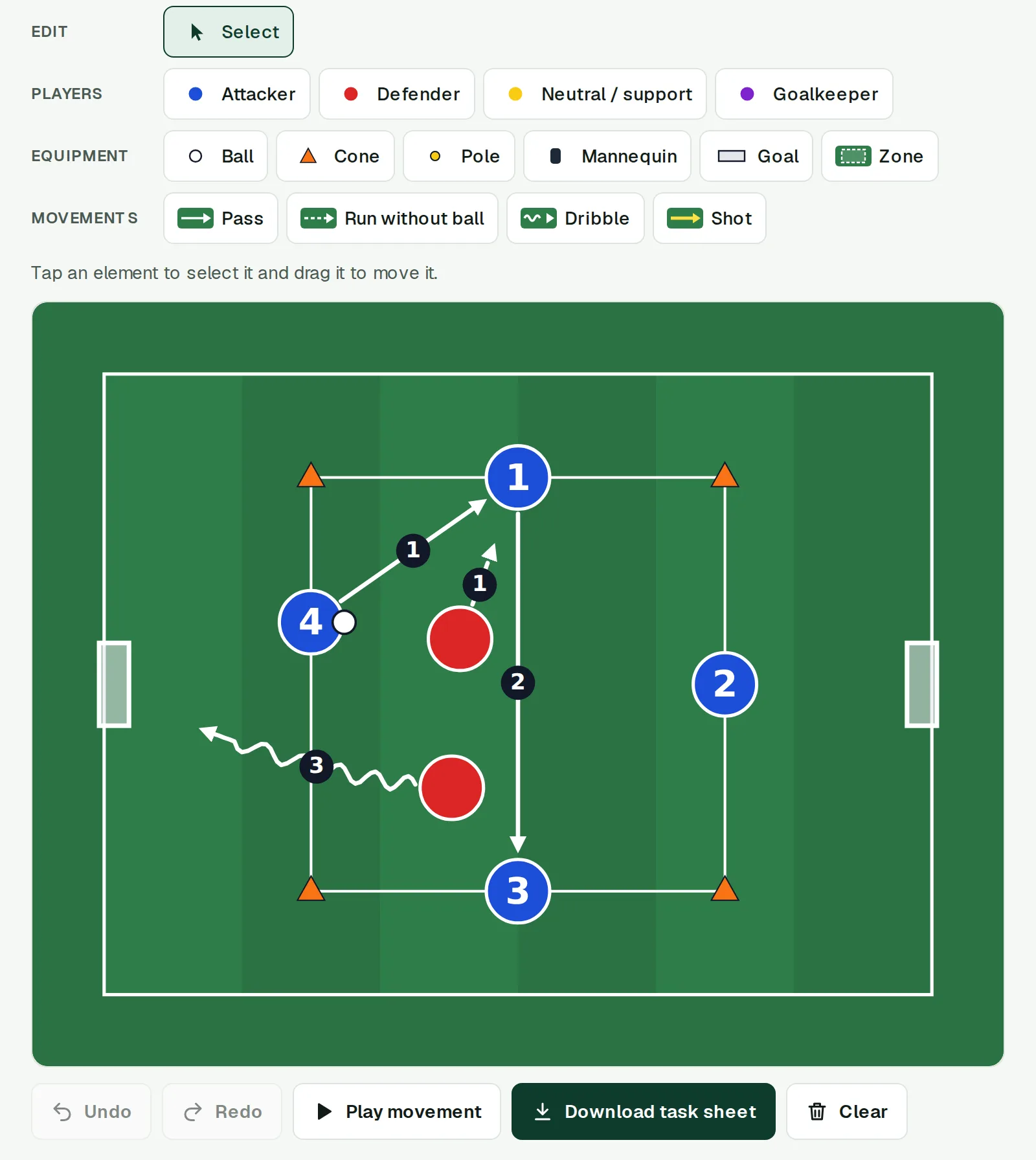
For the rondo: four cones for the square, four attackers numbered 1 to 4 on its sides, two defenders inside, a ball and a mini goal at each end of the area.
3. Draw the movements
Choose pass, run without the ball, dribble or shot and drag from a player to where the action ends. If the arrow starts on a player, that player moves with it when the movement is played.
Arrows are numbered in the order they happen. Give two arrows the same number and they happen at the same time: in the example, the pass from 4 to 1 and the defender's run to close it down are both 1. Then comes the pass from 1 to 3 (2) and, if the defenders win the ball, their dribble towards a mini goal (3). Arrows can also be curved, left or right.
Play movement shows the whole sequence as an animation, so you can check it makes sense before going further. Undo and Redo fix any mistake, and the drawing is saved automatically in your browser, so you can close the page and come back later.
4. Write the task details
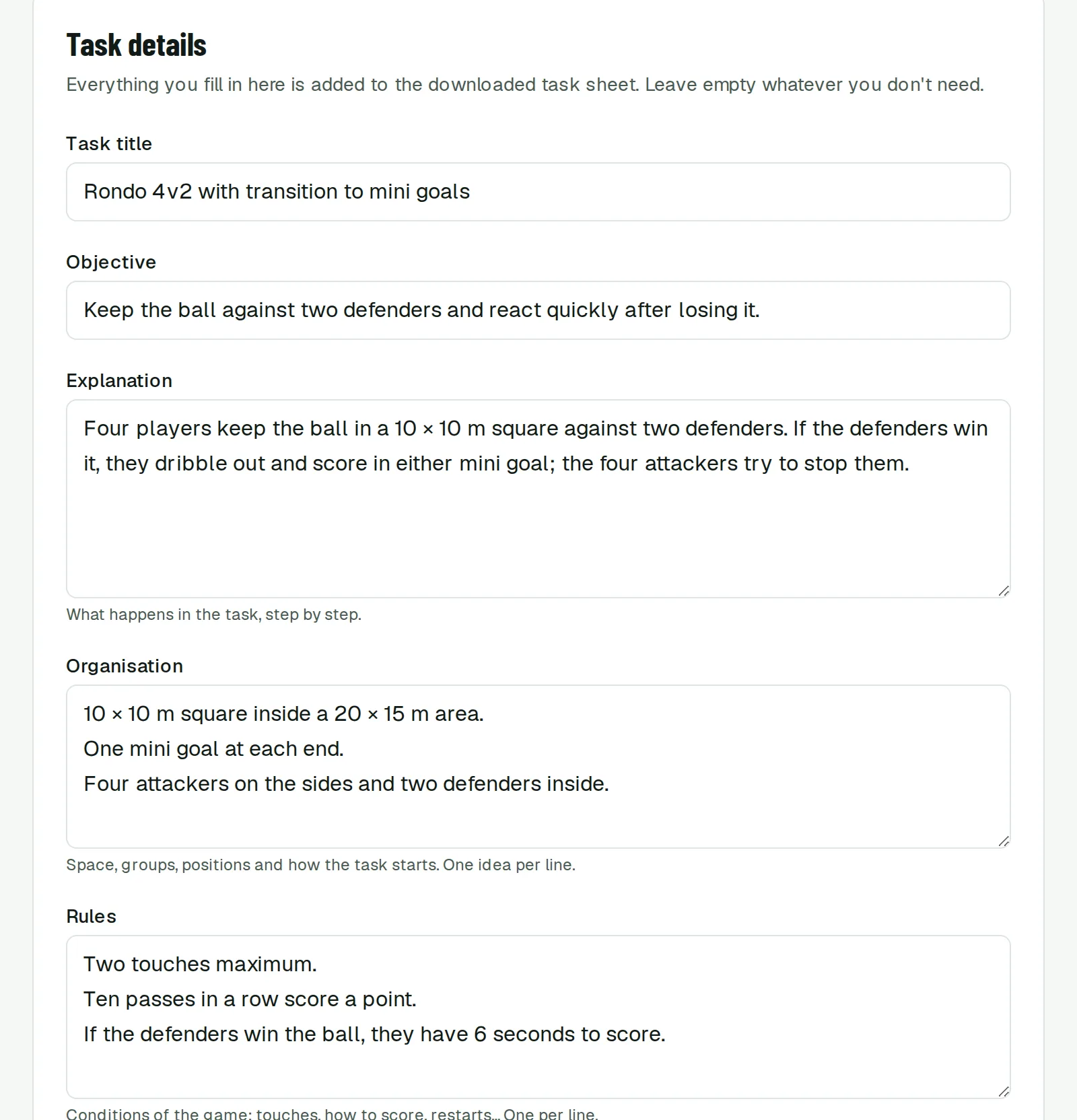
Under the board is the written part of the task: title, objective and explanation, plus organisation, rules, coaching points and progressions. In the lists, write one idea per line and each line becomes a bullet point on the sheet.
Write as you would explain it to an assistant coach who has never seen the task: the size of the area, how many players and where they start, how points are scored and what you will correct. Fill in only what you need; empty fields do not appear on the sheet.
5. Classify it
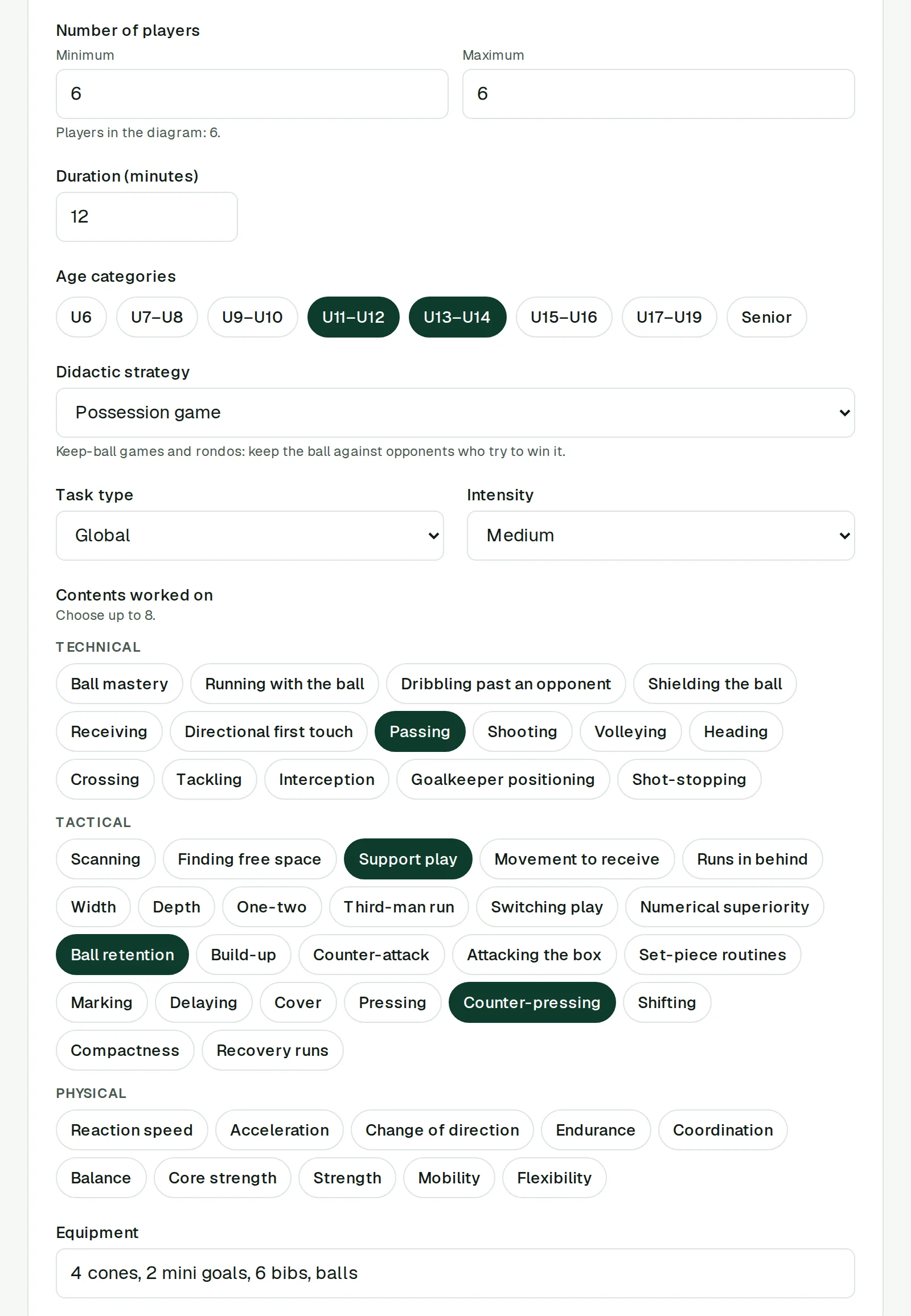
Then add the number of players (the form shows how many there are in the diagram), the duration and the age categories. Finally, classify the task as every task on this website is classified: didactic strategy, task type (analytical, intermediate or global), intensity and up to eight contents worked on.
Classifying it takes a minute and makes you think about what the task really works on. If you want to know more about these criteria, there is a whole post about how we classify the tasks.
6. Download the task sheet
Download task sheet creates an image with the diagram, its legend and everything you have filled in. It is ready to send to your staff on WhatsApp, print for the pitch or keep in your own task bank.
7. Send it to RondoMap
If you like how it turned out, you can send it with the Send to the creator button. Your name and email are optional; the email is only used to reply to you about that task. I review every task and, if it fits the library, I publish it with its diagram and explanation in English and Spanish, with your name as the author if you give it.
And if you would rather use it in your next session straight away, add it to the session planner as an own task. Either way, I would love to see what you draw.